TIL: Jetbrains DataGrip -- Automatically start VPN connection
A good security approach when working with Azure-hosted databases is to connect through a VPN tunnel.
This typically involves installing the Azure VPN Client and importing a profile file, and then starting that VPN tunnel before connecting to the database.
On macOS the above creates a system-wide VPN profile, which means it can be started from the command line with:
scutil --nc start "vpn profile name"
Which in turn means that we can have DataGrip automatically start it before opening a connection to the database.
Steps are as following:
- Locate the name of the VPN profile in macOS System Settings -> VPN.
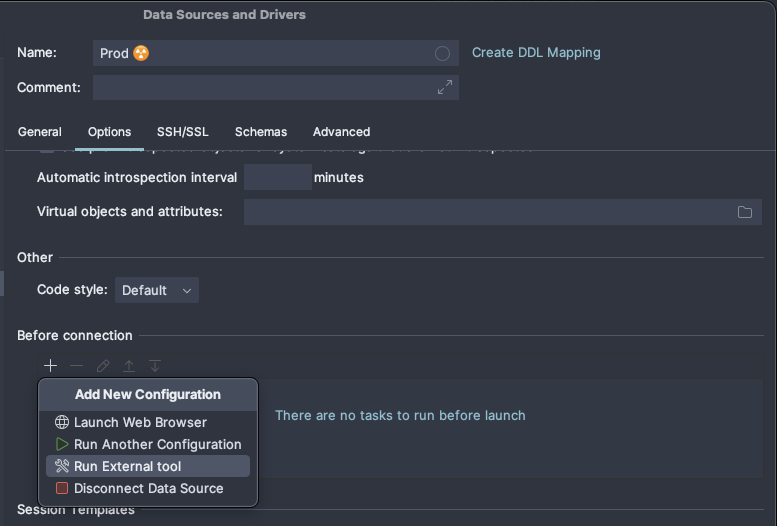
Mine isprod-shared-vnet. - After selecting the desired data source, open the Options panel.
- Find the Before connection section, click
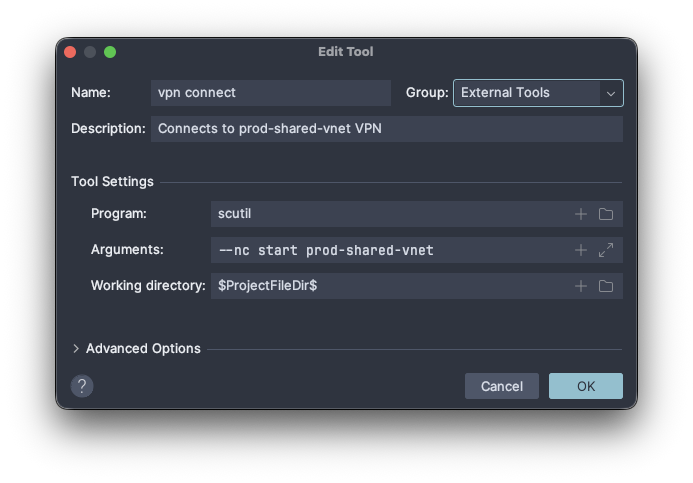
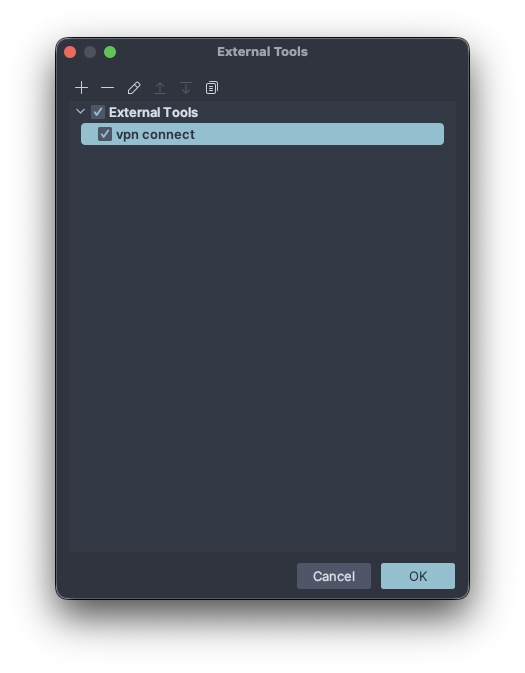
+to Add New Configuration and select Run External Tool. - Create a new tool with an explicit name like “vpn connect”, then enter:
- Program:
scutil - Arguments:
--nc start prod-shared-vnet, or whatever is your VPN connection name.
- Program:
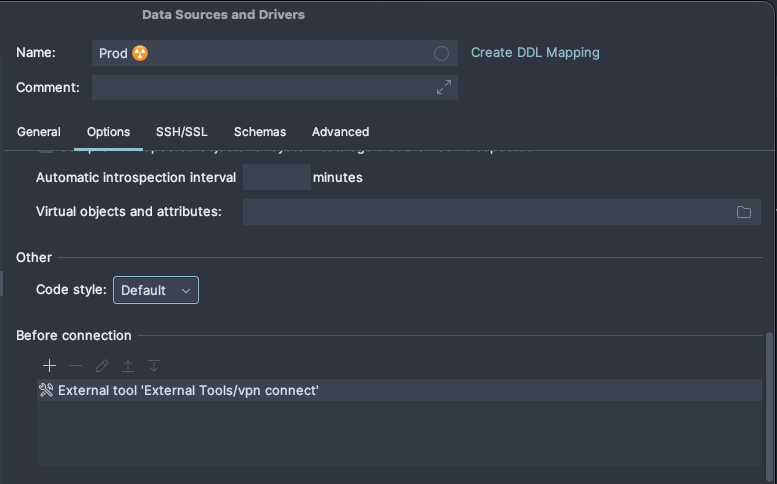
- Make sure the “vpn connect” external tool has been selected before returning to the Before connection section.
Note:
- executing the first query fast enough, before giving the tunnel a chance to fully connect, might fail with a “Cannot find server” or something similar; retrying works pretty reliably.
- for other connections to the same server, just select the existing tool.
scutil --nc stop prod-shared-vnetdisconnects the VPN tunnel. It seems to also drop when the computer goes to sleep.
Screenshots below.